
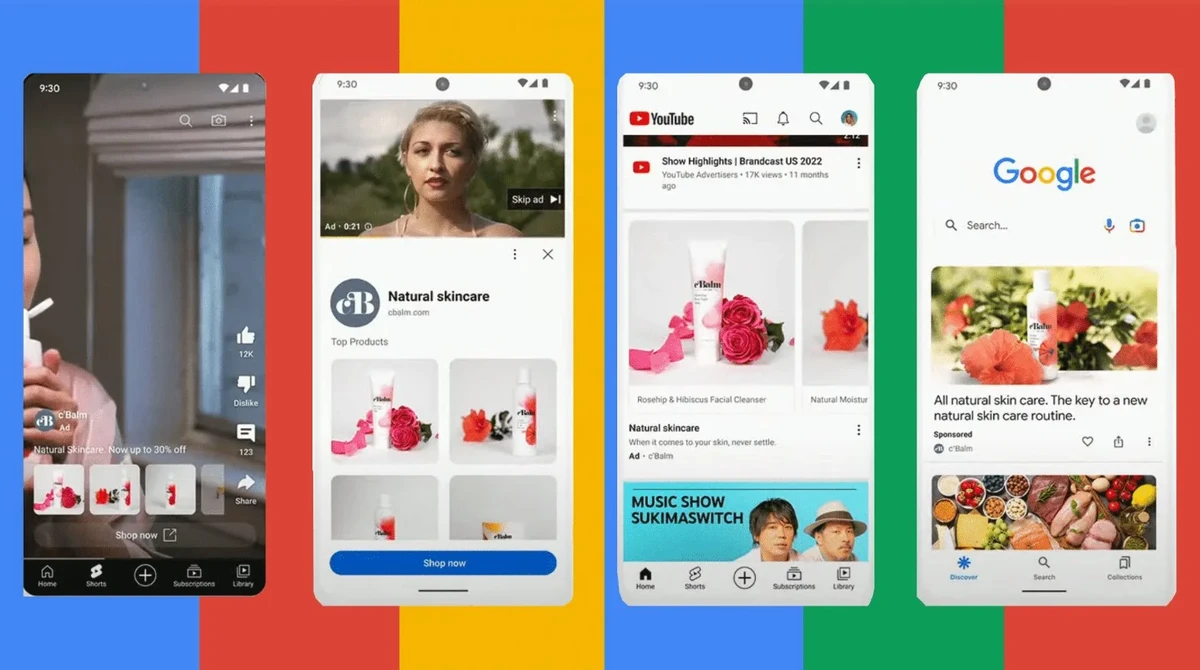
es1.bahasberita.com – To advertise your YouTube videos using Google Ads, you first need to link your YouTube channel or specific videos to your Google Ads account. Then, create a Video campaign choosing an ad format such as skippable in-stream or bumper ads, set your budget and audience targeting preferences, and launch the campaign. Monitor performance through detailed Google Ads reports and optimize your campaign continuously to maximize video promotion success.
In today’s digital landscape, promoting YouTube content through Google Ads is a powerful way to increase visibility, grow your channel, and drive meaningful engagements. YouTube’s massive user base combined with Google’s advanced advertising platform offers unparalleled targeting and performance insights. Whether you are a YouTube creator aiming to expand your audience or a marketer managing client campaigns, understanding how to effectively set up and optimize YouTube video ads is essential for digital success.
This tutorial will guide you step-by-step through the entire process—from linking your YouTube channel to Google Ads to selecting the right campaign type and ad formats, launching your campaign, and analyzing performance data. You’ll also discover best practices, troubleshooting tips, and compliance considerations to ensure your campaigns run smoothly and deliver a strong return on investment.
Let’s dive into the essentials and technical steps you need to master to create effective YouTube ad campaigns with Google Ads, empowering you to leverage video advertising as a key growth driver.
Prerequisites for Advertising YouTube Videos with Google Ads
Before launching your first YouTube video ad campaign, ensure you have the foundational accounts and assets properly set up. This preparation will save you time and avoid common issues during campaign creation.
1. Google Ads Account Setup
2. YouTube Channel and Video Content
3. Linking YouTube to Google Ads
– Navigate to Google Ads > “Linked Accounts” > “YouTube.”
– Request and approve permission to link the accounts.
Advertisement
– Access to performance insights such as organic and paid view counts.
– Ability to create remarketing lists based on YouTube channel visitors or viewer engagement.
– Enhanced campaign management with permission to promote videos directly.
4. Prepare Target Audience & Campaign Goals
With these prerequisites covered, you’ll be ready to build effective YouTube video campaigns using Google Ads.
Step-by-Step Guide to Setting Up YouTube Video Ads with Google Ads
Launching your YouTube advertising campaign in Google Ads involves multiple detailed steps. Follow this guide carefully to avoid pitfalls and maximize ad effectiveness.
1. Linking Your YouTube Channel to Google Ads
How to Link Accounts (5-10 minutes)
– Go to Tools & Settings > Setup > Linked accounts.
– Click YouTube and choose Add channel.
– Enter your YouTube channel URL and request to link.
– Sign in, navigate to Settings > Channel > Advanced settings.
– Under Linked accounts, approve or confirm the linking request.
Permissions and Data Benefits
Once linked, you can:
2. Selecting the Right Google Ads Video Campaign Type (10-15 minutes)
Google Ads offers three primary video campaign goals aligned with the buyer’s journey:
Choose a goal reflecting your campaign objective. For example, use Brand Awareness campaigns to introduce your channel to new viewers, or Conversions if you want sign-ups or purchases triggered by your video ads.
3. Choosing YouTube Ad Formats and Placements (15-20 minutes)
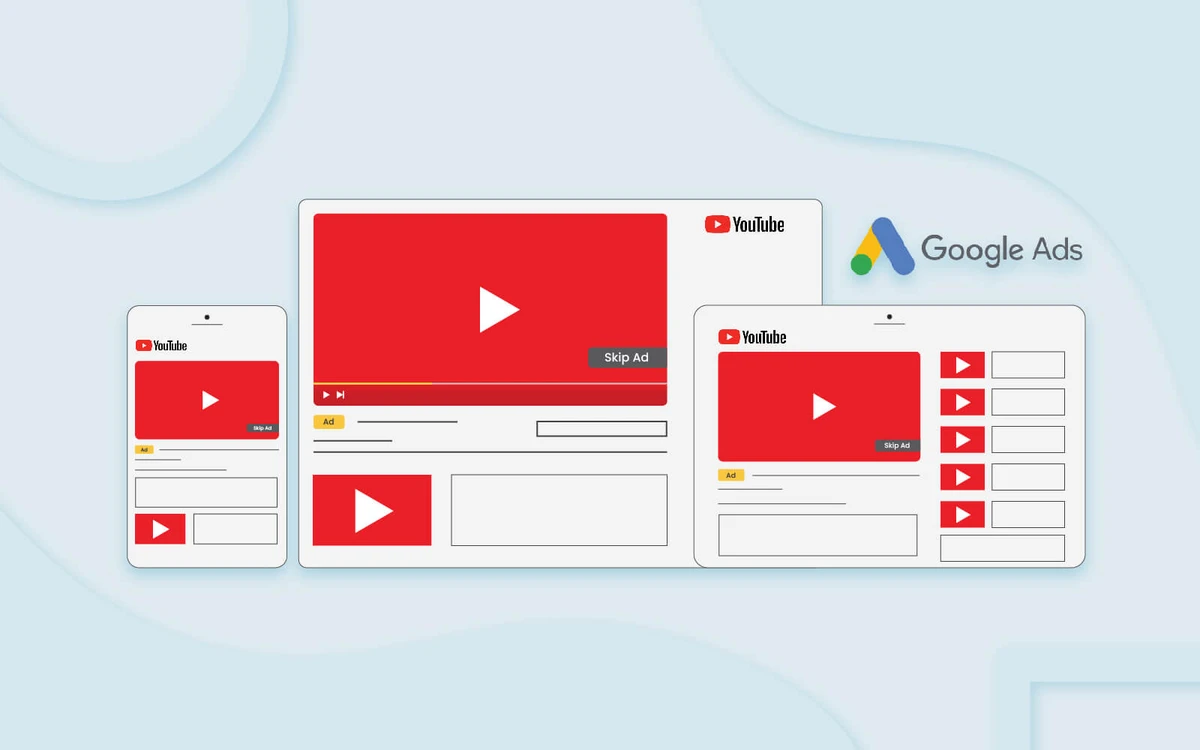
Understanding ad format differences is vital for campaign success:
4. Setting Up the Campaign in Google Ads (20-30 minutes)
Step-by-Step Campaign Creation
– Maximize conversions
– Target CPM (cost per mille/1000 impressions)
– Target CPV (cost per view)
– Demographics: age, gender, parental status.
– Locations and languages.
– Interests, keywords, topics.
– Devices (mobile, desktop, TV).
5. Launching and Monitoring Your Campaign (Ongoing)
– Views and view rates
– Click-through rates (CTR)
– Engagement metrics (likes, shares, comments)
– Conversion tracking if set up
– Increase bids on high-performing demographics.
– Adjust targeting to exclude underperforming segments.
– Experiment with new creative formats or messaging.
Use the reports daily or weekly for campaign optimization to improve ROI.
Best Practices and Tips for Google Ads on YouTube
Maximize your YouTube advertising impact with these expert tips:
Troubleshooting Common Issues When Advertising on YouTube via Google Ads
Advertising on YouTube can encounter multiple roadblocks. Here are common problems and how to resolve them:
1. Ad Format Not Eligible
2. Linking Permission Problems
3. Low Impression Volume
4. Poor Engagement or High Skip Rates
5. Algorithmic Impact on Video Ranking
Compliance and Transparency in YouTube Advertising
Stay compliant and transparent, especially with evolving regulations:
– Declare if ads relate to political content.
– Use Google Ads Transparency Center tools to provide disclosures.
– Monitor your ad campaign approvals.
– Access real-time disclosure data.
Additional Resources for YouTube Advertising Success
To continue improving your YouTube video advertising:
Resource |
Purpose |
Link |
|---|---|---|
Google Ads Help Center |
Comprehensive official guidance on campaign setup and optimization |
|
Google Skillshop |
Training courses and certifications for Google Ads proficiency |
|
YouTube Creator Academy |
Best practices on video content creation and optimization |
|
Google Ads Transparency Center |
Ad policy updates and transparency for political ads |
You now have a comprehensive roadmap to advertise your YouTube videos effectively using Google Ads. By linking accounts, choosing optimal campaign types and ad formats, targeting precisely, and monitoring results, you can unlock your channel’s growth potential. Always test different strategies and remain compliant with the latest policies to future-proof your video marketing success.
Advertisement
Advertisement