
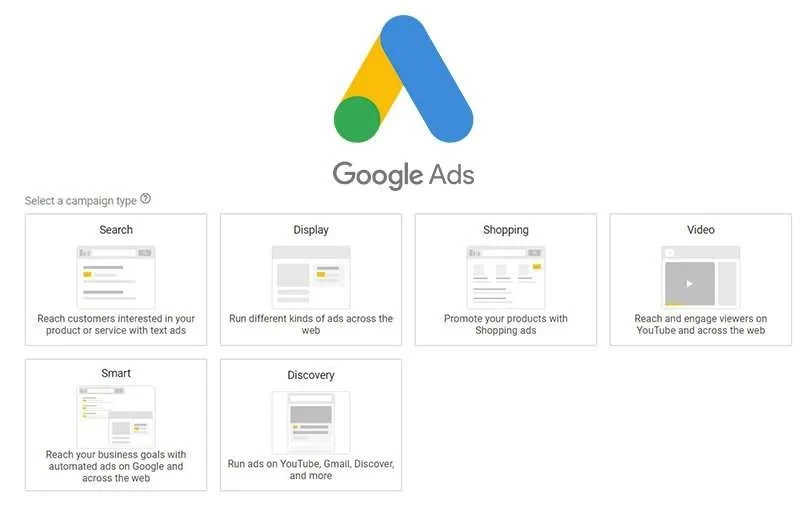
es1.bahasberita.com – Creating an effective Google Ads video campaign is a powerful way to boost your brand’s visibility, drive traffic, and increase conversions across Google’s extensive video network, including YouTube and Google Video Partners. To set up your campaign, you first select a campaign objective like Sales or Brand Awareness, then choose “Video” as the campaign type. Next, upload or link your YouTube video assets, define your target audience and placements, set your budget and bidding strategy, and finally launch your campaign. Continuous monitoring and optimization ensure your ads perform well.
Video advertising remains one of the most engaging formats in 2025, offering unparalleled reach and storytelling potential. With billions of users watching videos daily on YouTube and partner sites, leveraging Google Ads video campaigns lets marketers tap into diverse formats like skippable in-stream ads, bumper ads, and masthead campaigns that target users at various buying stages. The ability to refine audience targeting, integrate with Google Merchant Center, and utilize dynamic assets from the Asset Library ensures campaigns are both scalable and personalized.
This tutorial will guide you step-by-step, from setting up your Google Ads account and linking YouTube channels to selecting the right video campaign subtype, creating compelling video assets, targeting based on audience intent, and optimizing for mobile-first viewers. Whether you’re a beginner or looking to refine your video strategy, the actionable tips, screen references, and troubleshooting advice shared will help you master Google Ads video campaigns for maximum impact in 2025.
Let’s dive into the detailed process of creating and optimizing a video campaign that meets your marketing goals and amplifies your brand’s message effectively.
Step 1 – Choose Your Campaign Objective
Selecting the right campaign objective is crucial because it guides Google Ads on how to optimize delivery and bidding. Google provides several video campaign objectives designed to align with various marketing goals such as driving sales, generating leads, increasing website traffic, or building brand awareness through video advertising.
Overview of Available Objectives
Google Ads precisely tailors campaign optimizations based on your selected objective, impacting targeting, bidding, and ad placements.
How to Select the Best Objective Based on Your Marketing Goals
Advertisement
Consider your sales cycle stage and funnel position to align objectives with your audience’s intent.
Examples of Objectives Matched to Campaign Goals
For example, a new e-commerce store aiming to maximize purchases should choose Sales with conversion tracking enabled. A service-based business building mailing lists would select Leads with dedicated forms. Launching a new product might leverage Website Traffic to boost discovery, while an established brand running holiday campaigns could tap Brand Awareness to remind audiences broadly.
Step 2 – Select Your Video Campaign Type & Subtype
Google Ads offers multiple video campaign types and subtypes, each designed to meet different engagement styles and bidding strategies. Understanding these options helps you pick the right structure for your campaign goals.
Explanation of Campaign Types and Subtypes
– Drive Video Views: Optimizes for maximum video views, often with cost-per-view (CPV) bidding.
– Drive Conversions: Prioritizes conversions using cost per acquisition (CPA) models.
– Ad Sequence: Shows videos in a sequence to tell a story.
– Efficient Reach: Focuses on maximizing reach with frequency capping.
– Masthead Campaigns: Premium ads on YouTube’s homepage, usually reserved for large-scale brand awareness.
Recommended Subtypes for Beginners
Beginners should consider:
How Subtype Affects Bidding and Ad Placements
Subtypes determine bidding models: CPV for views, CPA for conversions, or CPM for reach. Subtypes also influence where your ads appear—on YouTube feeds, Google Video Partners, or across websites with video inventory, impacting impressions and engagement quality.
Step 3 – Create or Upload Your Video Assets
Video creatives are the heart of your campaign. You can upload existing YouTube videos or create new ones using Google Ads’ Asset Library features.
Uploading Videos from YouTube and Linking URLs
Creating Videos Using Google Ads Asset Library
Google Ads Asset Library provides templates, brand fonts, music, and image assets to create engaging video ads within the interface:
Tips for Engaging Video Content
Example: A fashion brand video starting with a model showcasing trending styles in the first 3 seconds, followed by a “Shop Now” CTA button, generally performs higher in engagement.
Step 4 – Define Targeting and Placement Settings
Defining precise audience targeting and ad placements ensures your video ads reach the right viewers in the right context, maximizing engagement and conversions.
Audience Targeting Options
Combining targeting layers sharpens focus and reduces wasted impressions.
Content Targeting: Keywords, Topics, Placements
Using Vertical and Square Video Formats
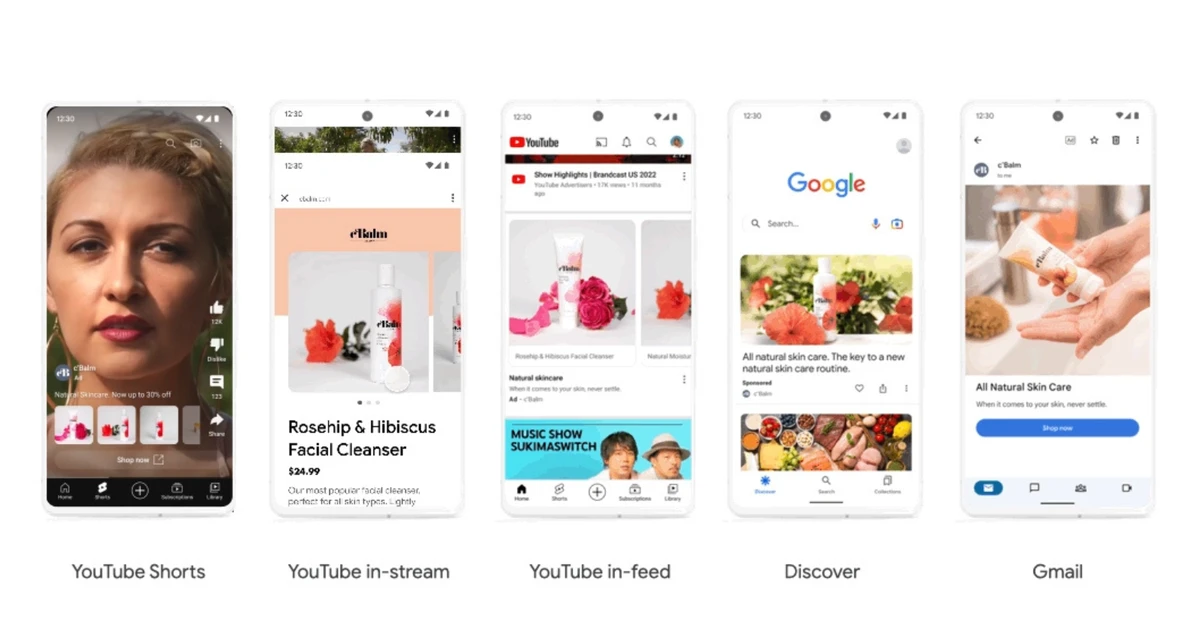
Google Video Partners often favor vertical and square videos for better mobile user experience. Upload multiple aspect ratios and test which drives better views. Vertical videos perform well in YouTube Shorts and mobile inventory.
Step 5 – Set Budget, Bidding, and Campaign Name
Establishing a sensible budget and bidding strategy aligned with campaign goals is essential for cost-effective campaigns.
Overview of Bidding Strategies
Choose a bidding model based on your campaign objective.
Naming Conventions and Setting Daily Budgets
Recommendations for Testing Budgets
Initial testing budgets should allow for at least 1000 impressions to collect meaningful data, usually $10-$50 daily, depending on market.
Step 6 – Optimize Your Campaign for Performance
Optimization involves continual adjustments based on performance metrics and audience behavior, especially for mobile users.
Tracking True Engagement Metrics
Regularly monitor these metrics to identify winning creatives or underperforming ads.
Optimizing Video Ads for Mobile Viewers
Using Google’s Performance Max Integration and Merchant Center
For e-commerce, linking your product feed through Google Merchant Center enables Performance Max campaigns to use your video assets dynamically, enhancing product discovery and conversion rates across Google’s ad inventory.
Step 7 – Launch and Monitor Your Campaign
After finalizing video ads, headlines, descriptions, and CTAs, it’s crucial to launch and continuously monitor your campaign.
Finalizing Headlines, Descriptions, and CTAs
Create relevant, clear text overlays and CTA buttons matching the video theme. Ensure messaging is coherent and aligned with landing pages.
Monitoring Campaign Performance
Keep track of:
Set alerts for unusual dips or spikes.
Troubleshooting Targeting Inefficiencies
If impressions lie low, check audience size or bidding. Low engagement may indicate creative fatigue or wrong target. Experiment by refining keywords, placements, or audience segments.
Troubleshooting Common Issues
Advanced Tips and Best Practices
Common Mistakes to Avoid
Alternative Methods to Create Video Ads
Resources and Tools
Testing and Validation
After launch:
—
With a well-planned setup, strategic targeting, and consistent optimization, Google Ads video campaigns can significantly elevate your marketing results in 2025. Begin with clear objectives, craft engaging video assets, and leverage Google’s robust platform tools to reach your ideal audience effectively. Continuous testing and adapting remain key for sustained success in this dynamic advertising channel.
Engage your audience with compelling video messages today and watch your brand thrive across Google’s vast video ecosystem.
Advertisement
Advertisement